Website feedback
“Which button?” This button.
- No browser extension
- Webflow & Shopify
- No client accounts
Your client clicks the thing they mean and types a note. You get the screenshot, a replay, their device and any errors on the page along with it.
Note 04 received
“The Add to cart button is cut off on my phone.”
- Screenshot
- Saved
- Replay
- Last 60 seconds
- Device
- Safari, iOS, 390×720
- Element
- .add
- Errors
- 1 on the page
Demo: how a note gets left
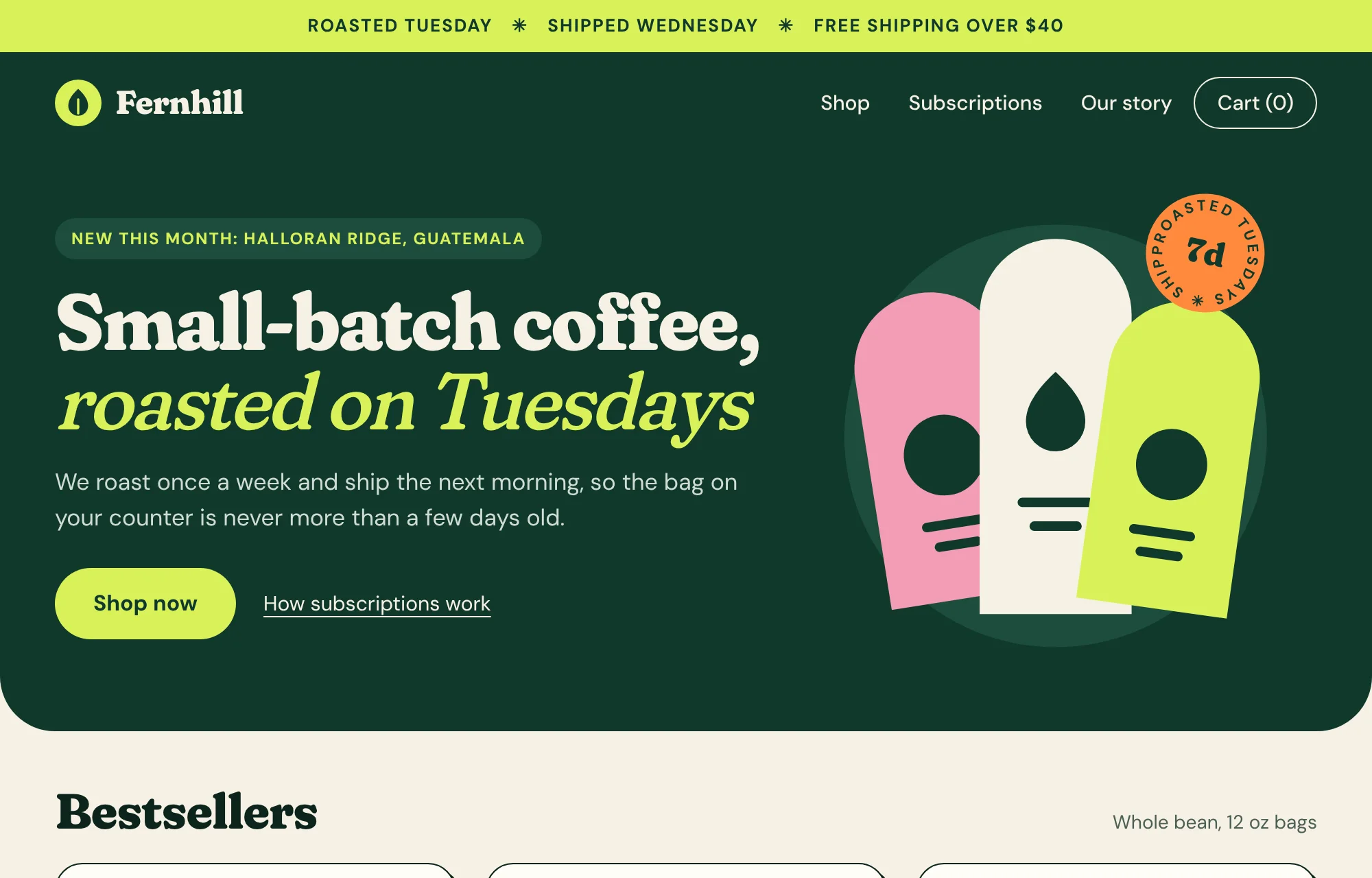
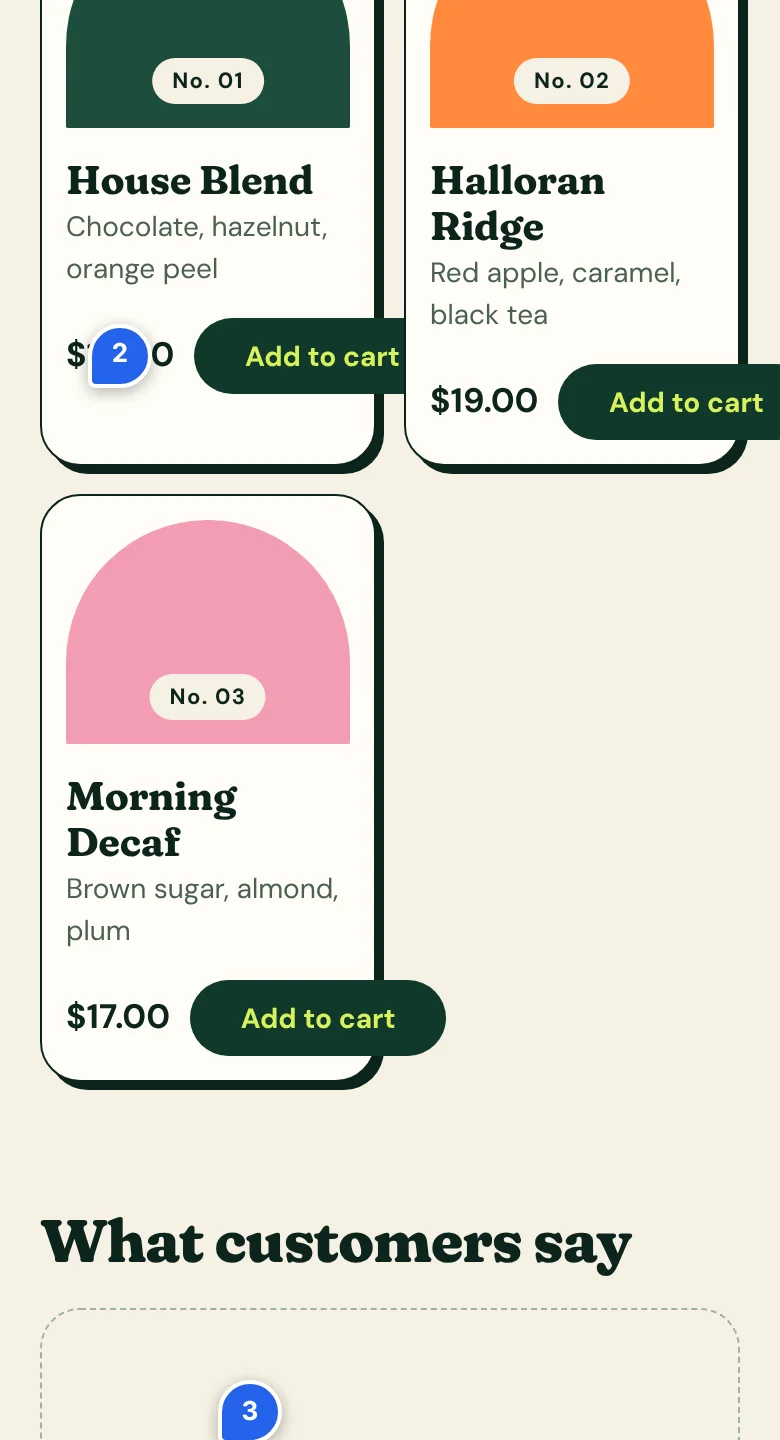
Step 1
They press Add note
The toolbar sits in the corner of the site. Your client has nothing to install.
Step 2
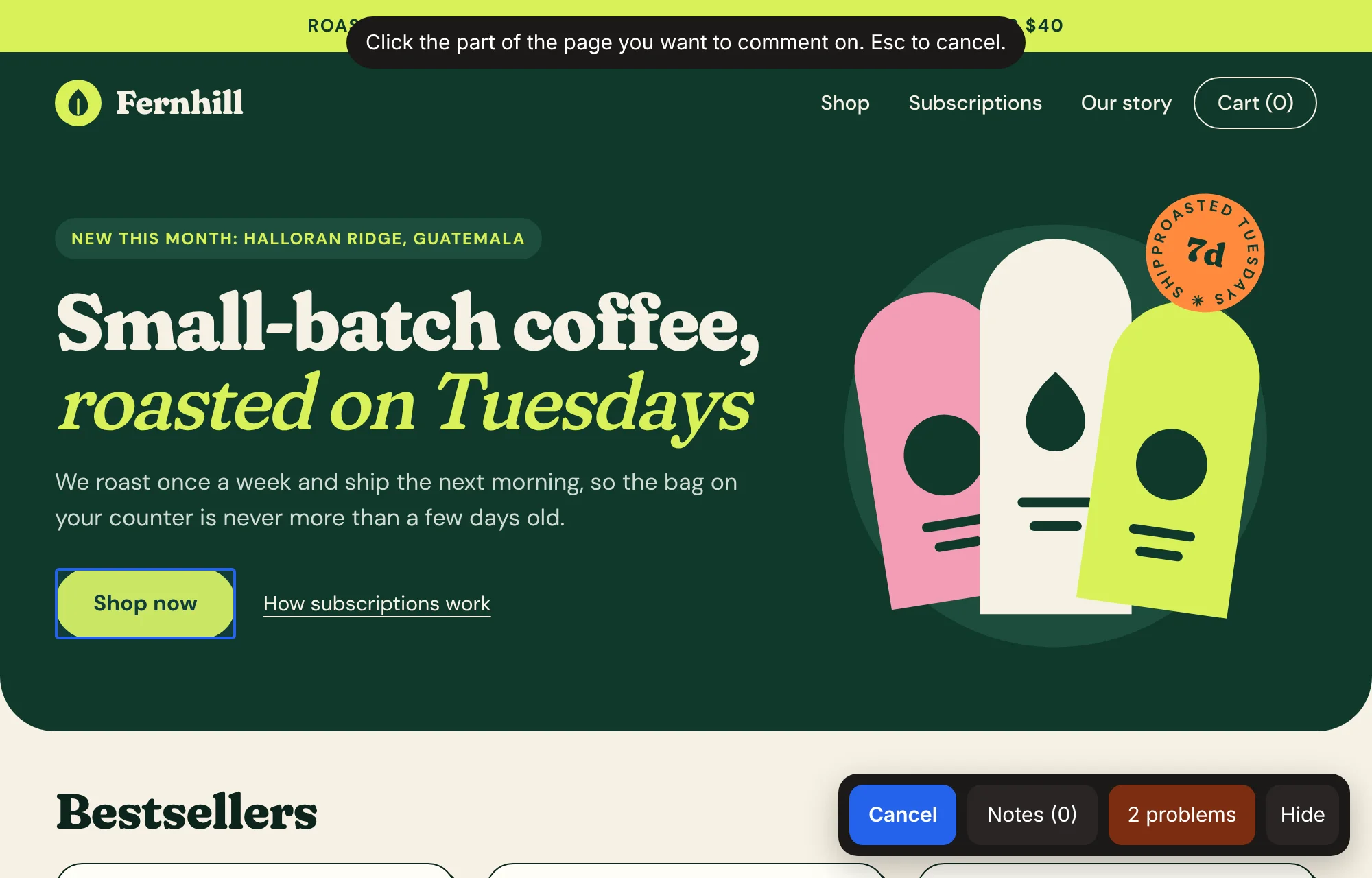
They click the thing they mean
Whatever is under the cursor gets a blue outline, so nobody has to describe which button.
Step 3
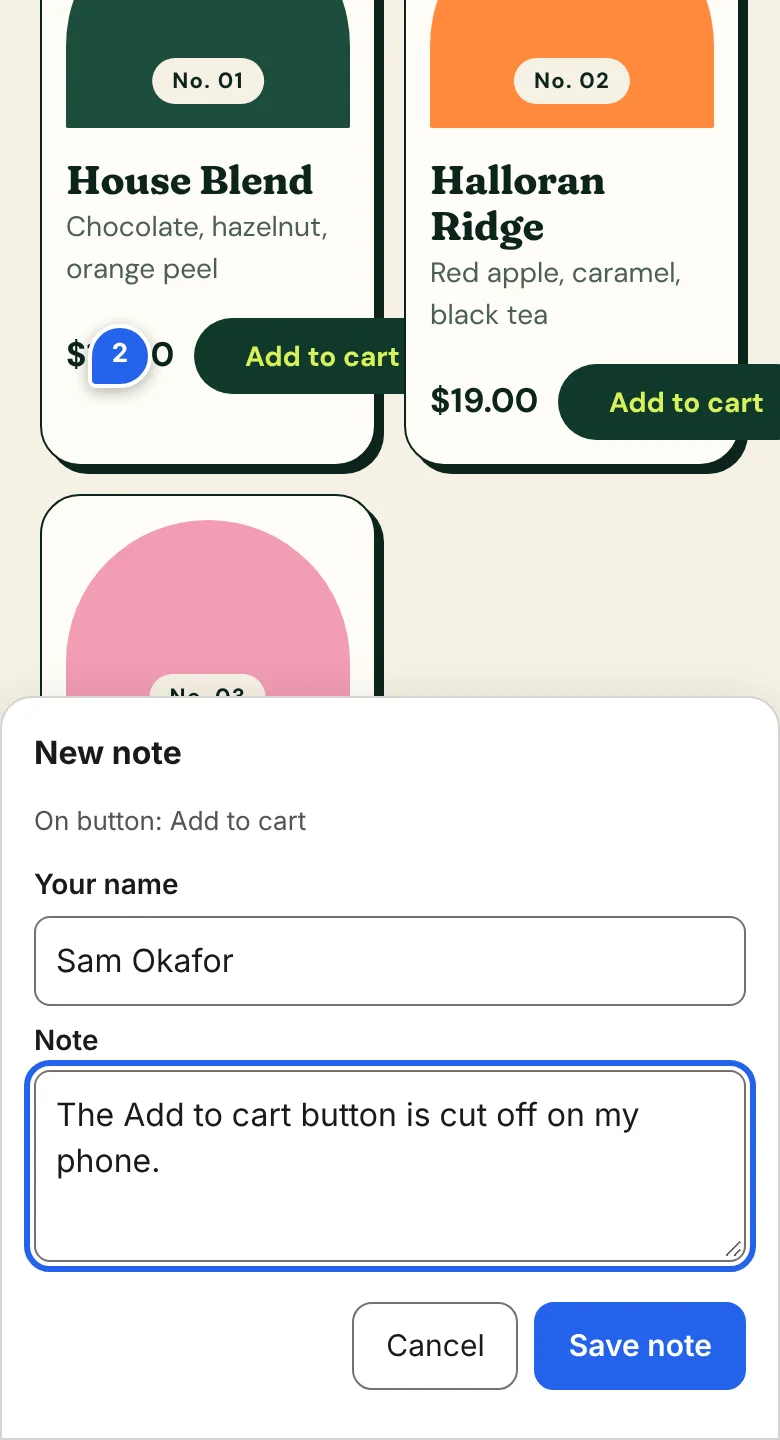
They type the note
Plain words, no account. They give their name the first time and that's it.
Step 4
You get the note with the details
A screenshot, a replay, their device, the exact element and any errors on the page.
Live, not a recording
Now try it on this page
This switches on the same toolbar your clients get. Press Add note, click anything on this page and type a note. It’s a demo, so nothing is saved or sent.
Before and after
Same problem. Two ways to hear about it.
A button is cut off on a client’s phone. Here is how you find out.
By email
Sam (client)
The button on the shop page looks broken. Can you fix it?
You
Which button? And are you on your phone or your laptop?
Sam (client)
The green one. On my phone, I think.
You
Could you send a screenshot?
Four emails in, and you still don’t have a screenshot.
With Site Notes
The Add to cart button is cut off on my phone.
Sam Okafor
- Screenshot
- With a dot on the button
- Replay
- The minute before the note
- Device
- Safari on iOS, 390×720
- Element
- li:nth-of-type(1) .add
One note. Nothing left to ask.
What you get
One sentence from them. The rest from us.
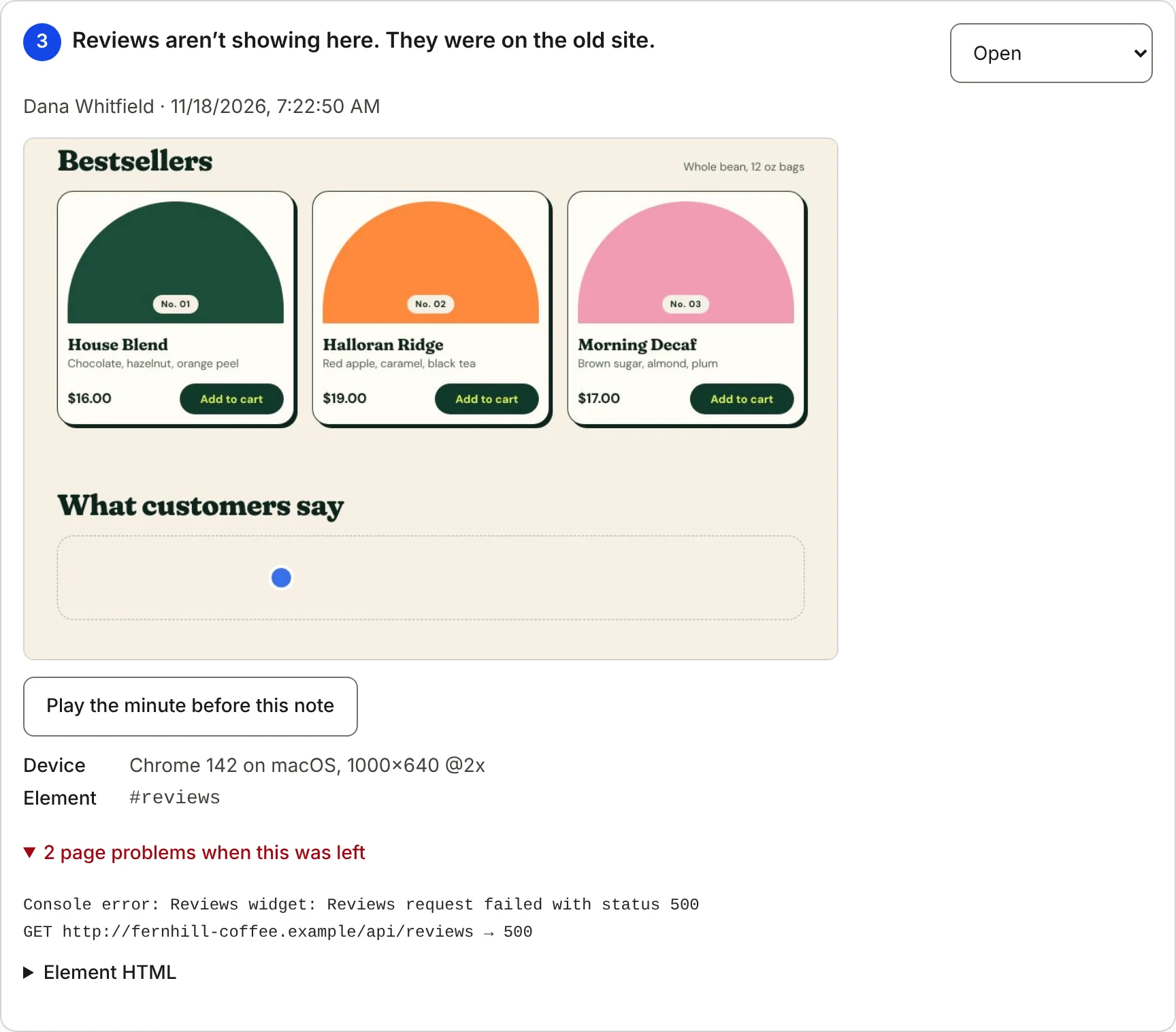
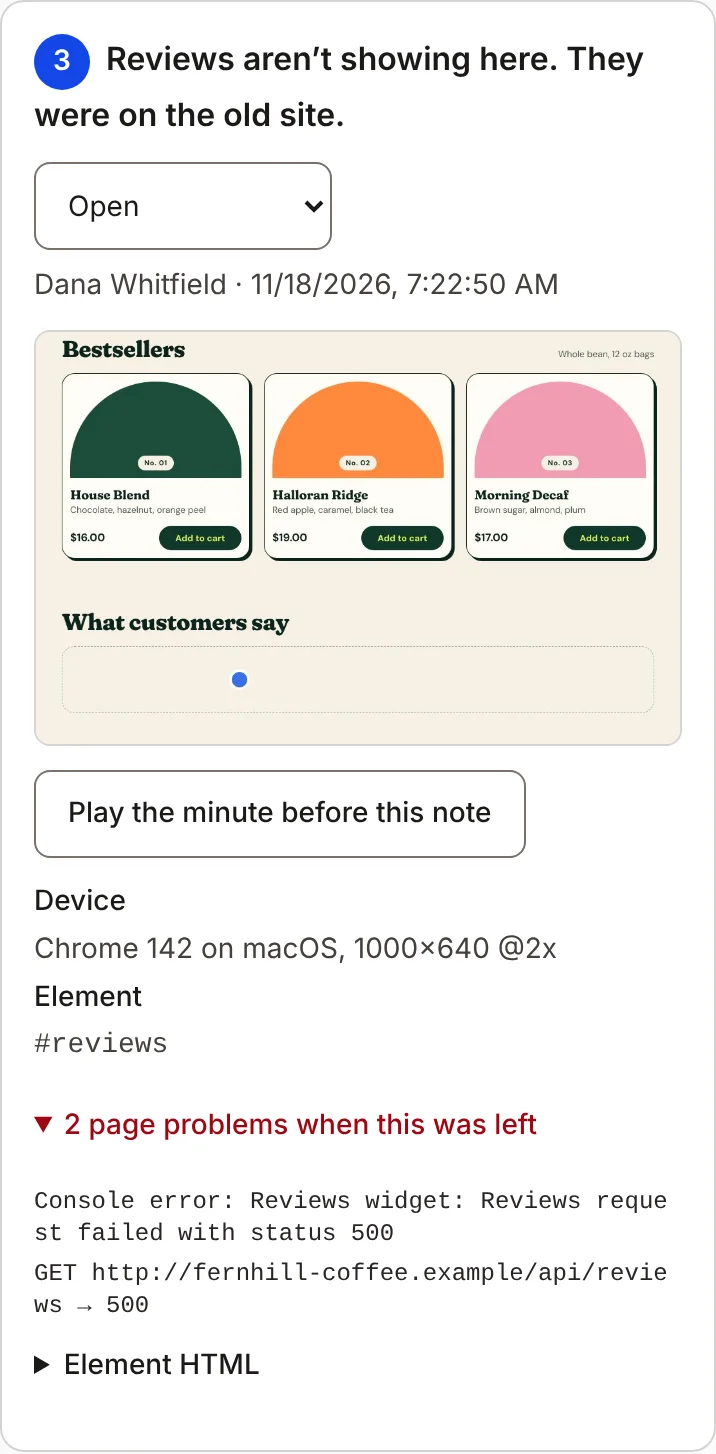
A screenshot
What they saw when they clicked, with a blue dot on the spot.
A replay of the last minute
Watch the 60 seconds before the note. Anything typed into a form is masked.
Browser and screen size
For example: Chrome 142 on macOS, 1000×640. You never have to ask what phone they're on.
Errors on the page
Console errors and failed requests from the moment the note was left.
The exact element
A CSS selector and the element's HTML, so a developer can find it in seconds.
A status
Open, In progress, Ready to check or Done. Filter the inbox by any of them.
The inbox
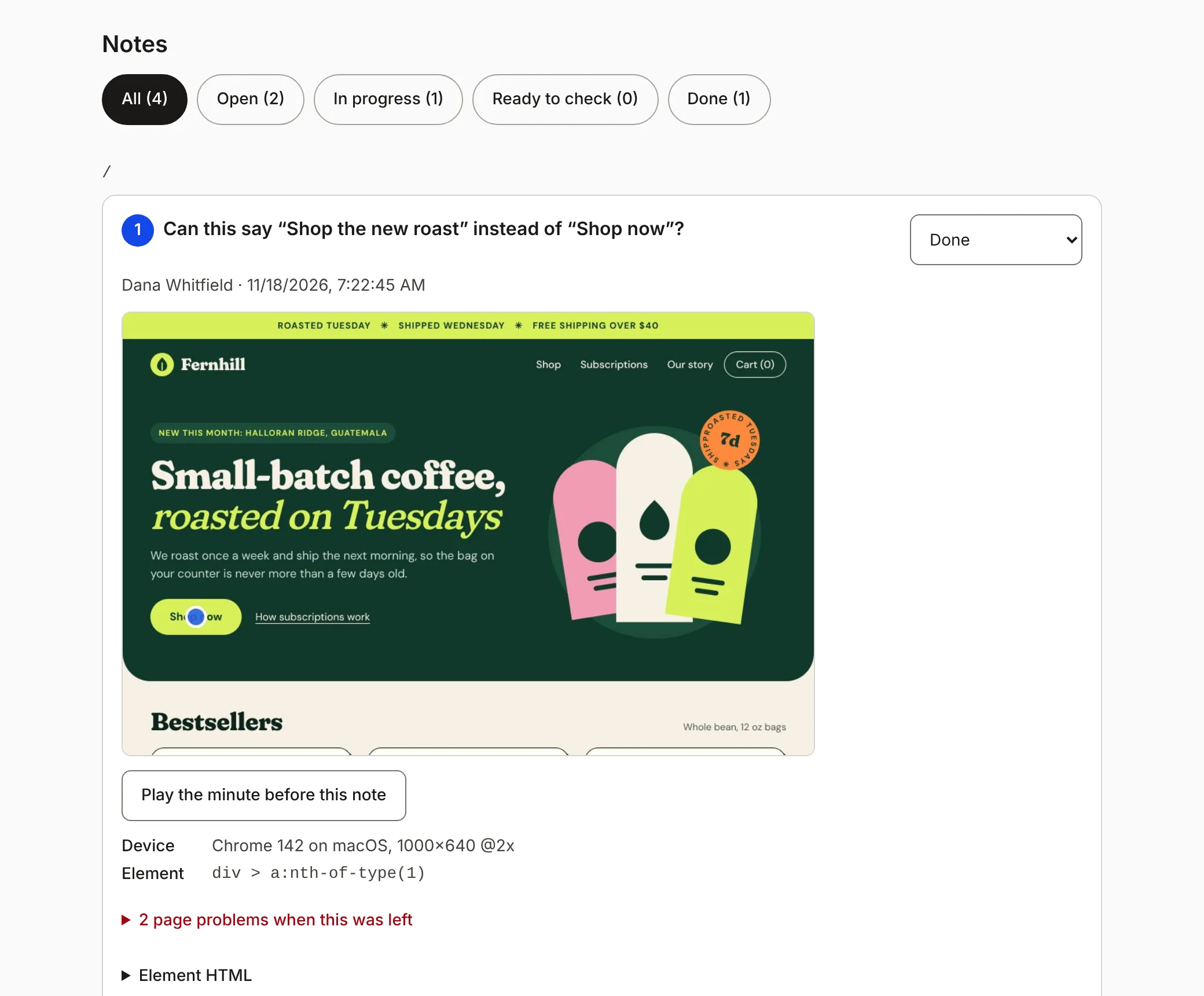
Every note in one inbox
Grouped by page
Notes sit under the page they were left on, so you can work through a site one page at a time.
Four statuses
Open, In progress, Ready to check and Done. Filter the inbox by any of them.
Pins stay on the site
Reviewers see every note as a numbered pin on the page, and can mark one done from there.
For your client
Easy enough for the least technical person on the thread
- Nothing to install. No extension and no account.
- Works on a phone. The note form opens as a sheet at the bottom.
- Works with a keyboard. Arrow keys to move, Enter to pick, Esc to cancel.
Install
On a site in three steps
Create a project
One project per website. You get a snippet and an inbox for it.
Paste one line of code
Webflow: Site settings, Custom code, Footer code. Shopify: Online Store, Themes, Edit code, theme.liquid.
Send the page with ?sitenotes
Reviewers get the toolbar. Normal visitors never see it.
The snippet
<script src="https://sitenotes.octagramlabs.com/widget.js" data-project="your-project-id" data-site-notes async></script>Just want a quick look first? Paste a site address and get a review link with nothing to install. Some sites don’t load well that way, so use the snippet when the review matters.
Platforms
Made for Webflow and Shopify reviews
Here is where the snippet goes on each. It also runs on any site where you can add a script tag.
Webflow
- Where the snippet goes
- Site settings, Custom code, Footer code.
- Staging
- Works on your webflow.io staging link and on the live domain.
Shopify
- Where the snippet goes
- Online Store, Themes, Edit code, then theme.liquid, just before the closing body tag.
- Password pages
- Works on stores behind a password, once the reviewer has entered it.
Anything else
- Where the snippet goes
- Anywhere before the closing body tag.
- No access to the code?
- Paste the site address and send a review link. Some sites don’t load well that way.
Privacy
What gets recorded, and what doesn’t
Visitors never see the toolbar
It only shows for people who open a page with ?sitenotes on the end of the address.
Form fields are masked
Whatever a reviewer types into a form on the site shows up as dots in the replay.
You can block any element
Add data-feedback-block to an element and it stays out of replays.
Only the last minute
A replay covers the 60 seconds before a note. Nothing is saved unless someone leaves a note.
Error logs are cleaned up
Email addresses, long card-style numbers and access tokens are removed from the errors saved with a note.
No client accounts
Reviewers give a name and nothing else. No email address, no password.
Pricing
Free for two sites
Clients and teammates never cost extra. Pay only when you need a third project.
Free
$0
For trying it on a couple of client sites.
- 2 projects
- Unlimited collaborators
- Screenshot, replay, device and errors on every note
Unlimited
$19per month
For agencies with more than two sites in review.
- Unlimited projects
- Unlimited collaborators
- Screenshot, replay, device and errors on every note
Questions
Good questions
Do my clients need an account or a browser extension?
No. They open the site, press Add note and click. The first time, they type their name so you know who left the note.
Will my site's visitors see the toolbar?
No. The snippet stays hidden until someone opens a page with ?sitenotes on the end of the address. That device then keeps the toolbar until they open a page with ?sitenotes=off.
Where do I paste the snippet in Webflow or Shopify?
Webflow: Site settings, Custom code, Footer code. Shopify: Online Store, Themes, Edit code, then theme.liquid, just before the closing body tag.
Does it work on staging sites and password-protected stores?
Yes. The snippet runs on the site itself, so it works anywhere the page loads, including Webflow staging links and Shopify stores behind a password, once the reviewer is past the password.
What does a replay record?
The page for the 60 seconds before the note: scrolling, clicks and what changed on screen. Form fields are masked. Add data-feedback-block to any element to keep it out of replays.
How do I sign in?
With Google, or with a code we email you. There are no passwords to remember.
What counts as a project?
One website. A project has its own snippet, its own review link and its own inbox of notes.